How to Record a Lecture on iPhone (The Right Way in 2026)

iPhone has had a built-in voice recorder for over a decade. Almost every student uses it at some point. Almost every student also discovers, three days before the exam, that a 90-minute Voice Memo of a lecture is almost useless for actually studying.
Here’s a better default — and the small etiquette things worth knowing first.
On this page:
- The legal / etiquette part
- Three ways to record
- iPhone tips that genuinely matter
- A simple decision tree
- FAQ
Before you record — the legal / etiquette part (60 seconds)
In most US states and most universities, recording a lecture you’re enrolled in for personal study is legal. But:
- Tell the lecturer. A quick “Mind if I record for my own notes?” before the first class. 99% will say yes; the 1% who don’t usually have a reason (sensitive material, anonymous student questions). Respect that.
- Don’t share the recording. Posting it to Discord, GroupMe, or anywhere public can violate your school’s academic integrity policy. The recording is for you.
- Some universities have explicit policies. A two-minute search of your student handbook saves you a meeting later.
That’s it. Now the actual recording.
Option A — Voice Memos (the default; works, but limited)
- Open Voice Memos (pre-installed on every iPhone)
- Tap the red record button when the lecturer starts
- Tap stop at the end
- Optionally rename it (“Anatomy Lec 4 — circulatory system”)
You now have a 90-minute audio file. To use it for studying, you have to either re-listen to all 90 minutes (passive, low retention — see why this fails) or transcribe it manually.
Pros: free, zero setup, works offline. Cons: no transcript, no summary, no flashcards. You have to do all of the studying yourself afterward.
Option B — Voice Memos + a transcription service
After recording, upload the file to a transcription tool like Otter.ai. You get a transcript in a few minutes.
Pros: searchable text. Cons: still a wall of words. You haven’t actually studied anything yet. (More on this trade-off in Studr vs Otter.)
Option C — AI notetaker app (recommended)
Apps like Studr record directly on iPhone and, when you stop, automatically:
- Transcribe the audio
- Break it into a structured summary (key concepts, definitions, examples)
- Generate flashcards from the content
- Schedule spaced-repetition reviews
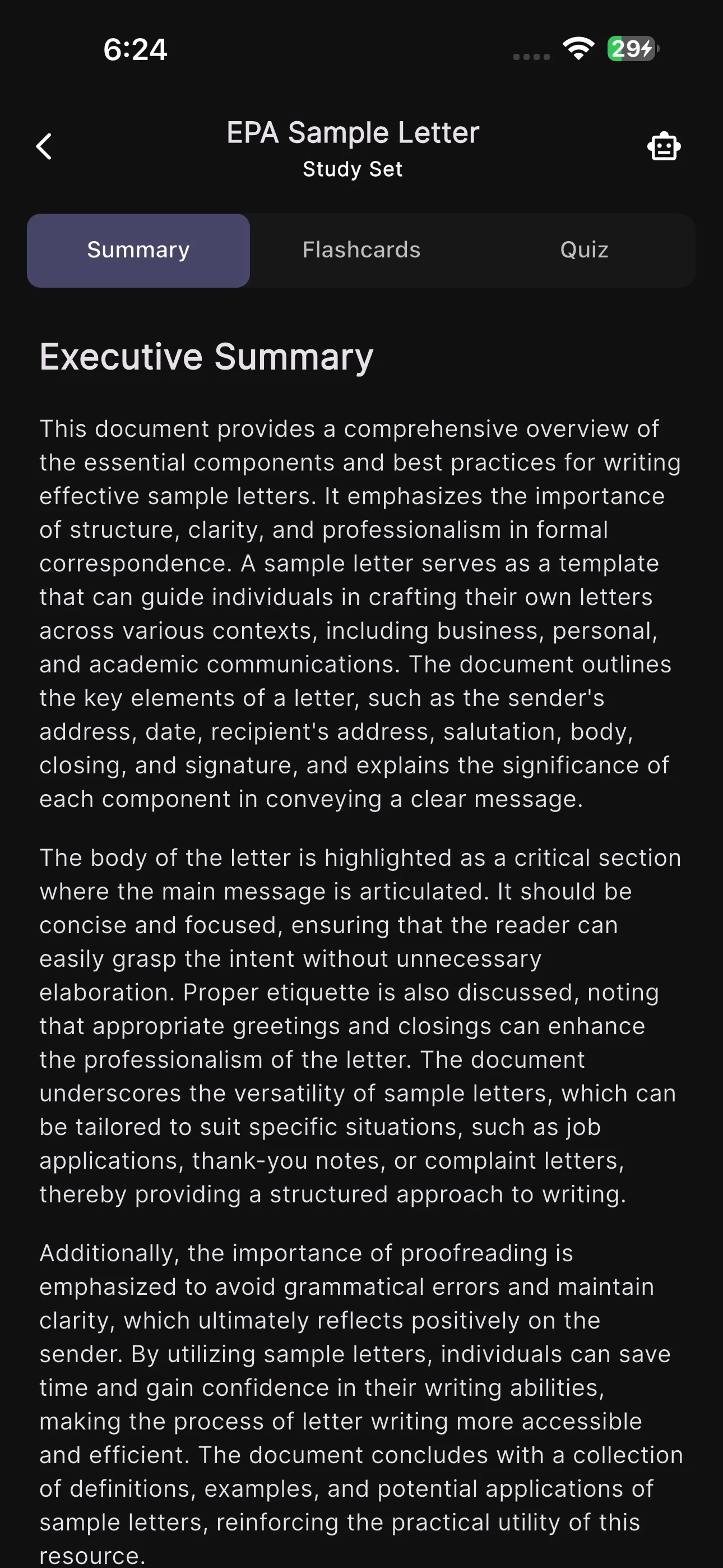
Pros: the recording becomes study material immediately, no extra steps. Cons: requires an internet connection to process (the recording itself works offline; processing happens when you reconnect).
A few iPhone-specific tips that genuinely matter
These apply whether you’re using Voice Memos or any AI app:
1. Place the phone closer to the lecturer than you think
iPhone microphones are good but directional. A phone in your pocket, lying flat on the desk in row 8, picks up your row-mate’s pen-clicking better than the lecturer’s voice. If the room allows it, sit closer. If you’re far back, lay the phone screen-up on the desk in front of you (not in your bag).
2. Do NOT use Low Power Mode
Low Power Mode throttles background processes. AI notetaker apps that process audio in the background (and even Voice Memos transcription) can stall or lose accuracy. Plug into a charger if you’re below 30%.
3. Turn off “Hey Siri” before you start
A long lecture has a non-zero chance of triggering “Hey Siri” by accident, which interrupts recording on some apps. Settings → Siri & Search → “Listen for Hey Siri” → Off (just for class).
4. Test once on a 2-minute clip before relying on it for an exam
Record a 2-minute test of yourself reading a paragraph from your textbook out loud. Listen back. If the audio is muffled or the transcription is wrong, fix the setup now, not at midnight before finals.
5. Bluetooth earbuds make terrible mics for this
If you have AirPods in, the iPhone routes recording to them by default. AirPods mics are tuned for your voice on calls — they’re awful at picking up a lecturer 20 feet away. Take them out before recording.
A simple decision tree
| If you… | Use |
|---|---|
| Just need a backup recording in case you missed something | Voice Memos |
| Want a searchable transcript | Voice Memos → upload to a transcription service |
| Want to actually study from the recording | AI notetaker (e.g. Studr) |
The honest summary
Voice Memos is a recording tool. It is not a studying tool. Most of the value of a lecture recording is locked away unless you do something with it afterward — and “something” usually means hours of work.
If your goal is to walk into the exam knowing the material, the time saved by an AI notetaker isn’t a luxury. It’s the entire point of recording in the first place.
FAQ
How do I record a lecture on my iPhone?
Open the pre-installed Voice Memos app and tap record — that captures the audio. But for studying, an AI notetaker like Studr records and then automatically transcribes, summarizes, and makes flashcards, so the recording becomes usable study material instead of a 90-minute audio file.
Is it legal to record a lecture?
In most US states and universities, recording a class you’re enrolled in for personal study is legal — but ask the lecturer first, don’t share the recording publicly, and check your school’s policy, which may have specific rules.
Where should I put my phone to record a lecture?
As close to the lecturer as practical. iPhone mics are directional, so a phone in your bag or pocket at the back of the room picks up ambient noise over the speaker. Lay it screen-up on the desk in front of you, and take out AirPods (their mics are poor for distant audio).
Does Voice Memos transcribe lectures?
Recent iOS versions can transcribe Voice Memos, but you still get a plain transcript with no structure, summary, or flashcards. For studying, a purpose-built AI notetaker turns the same audio into organized notes and recall practice.
Can I record offline and process later?
Yes — with Studr the recording works offline; the transcription and summary run when you reconnect to the internet. Avoid Low Power Mode during long recordings, as it can throttle background processing.
Try it
Download Studr on iPhone — recording, transcribing, and study generation in one tap. Or stick with Voice Memos and use the 4-step study protocol to make manual review more effective.